Stripe Setup
You need to enter your Stripe credentials in the Admin panel under Finance Manager -> Payment Settings -> Stripe. Ensure you include all your Stripe credentials and activate the Stripe checkbox(es).
- Stripe Key
- Stripe Secret Key
- Domain Name for Stripe Webhook URI
- Stripe Webhook Secret

How to get Stripe API Key and Stripe Secret Key:
- Log in to your dashboard at dashboard.stripe.com.
- From the left menu, select Developers -> API Keys. Here, you will find your Publishable Key (API Key) and Secret Key.
- Copy and paste these keys into Finance Manager -> Payment Settings -> Stripe.
Create Stripe Webhook with select events:
- Log in to your dashboard at dashboard.stripe.com.
- Navigate to Developers -> Webhooks -> Add Endpoint from the left menu bar.
- Create a webhook in your Stripe Developer Account.
- Include your domain name followed by /webhooks/stripe. For example: https://www.domainname.com/webhooks/stripe
- Add the following two events:
- invoice.payment_failed
- customer.subscription.deleted
- invoice.paid
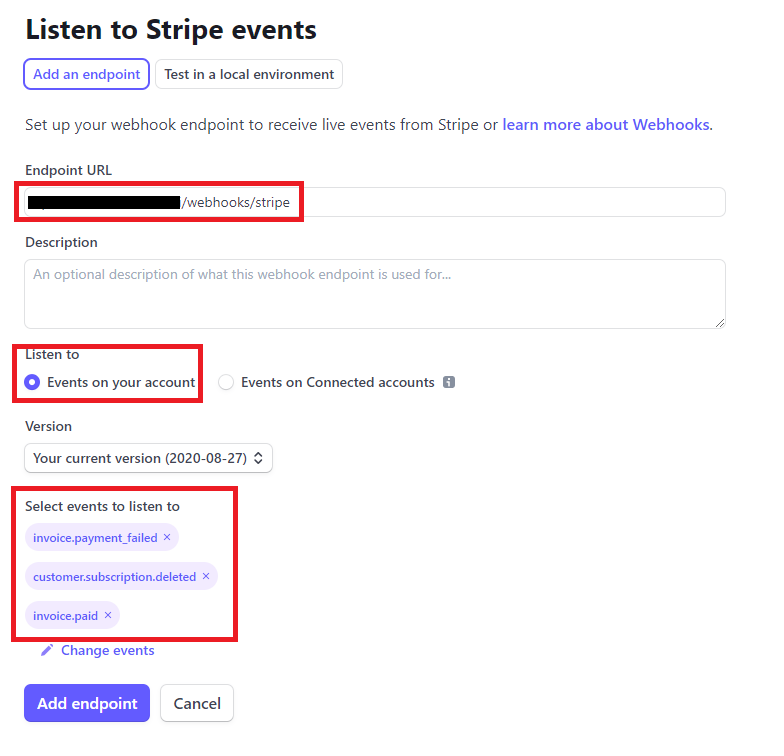
- After creating your webhook, copy the Webhook URL and Webhook Secret to the corresponding fields under Admin -> Finance Manager -> Payment Settings -> Stripe.