RazorPay Setup
You need to enter your RazorPay credentials in the Admin panel under Finance Manager -> Payment Settings -> RazorPay. Ensure you include all your RazorPay credentials and activate the RazorPay checkbox(es).
- RAZORPAY_KEY_ID
- RAZORPAY_KEY_SECRET
- RAZORPAY_WEBHOOK_SECRET
- RAZORPAY_BASE_URI=https://api.razorpay.com
- RAZORPAY_WEBHOOK_URI=https://YOURDOMAINNAME/webhooks/razorpay
How to get Razorpay webhook:
- Login to your Razorpay account at Razorpay.com.
- Retrieve your API keys by navigating to Account & Settings -> API Keys.
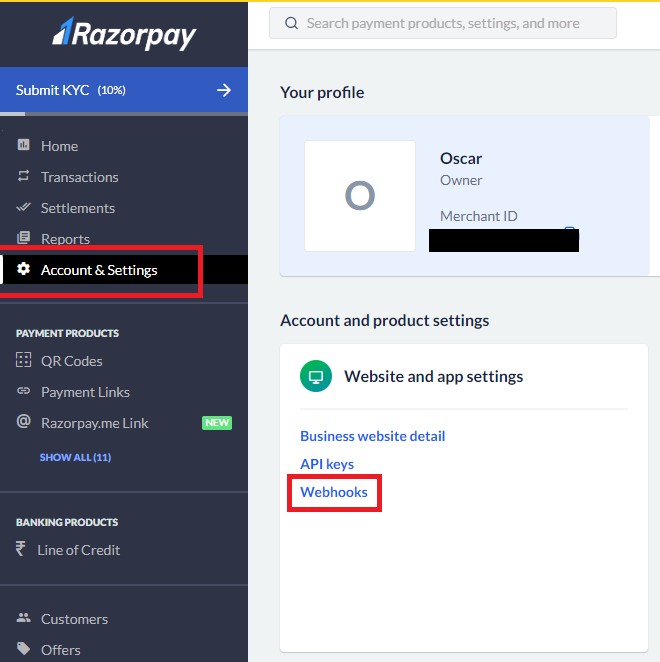
- To set up your webhook, go to Account & Settings -> Webhooks.
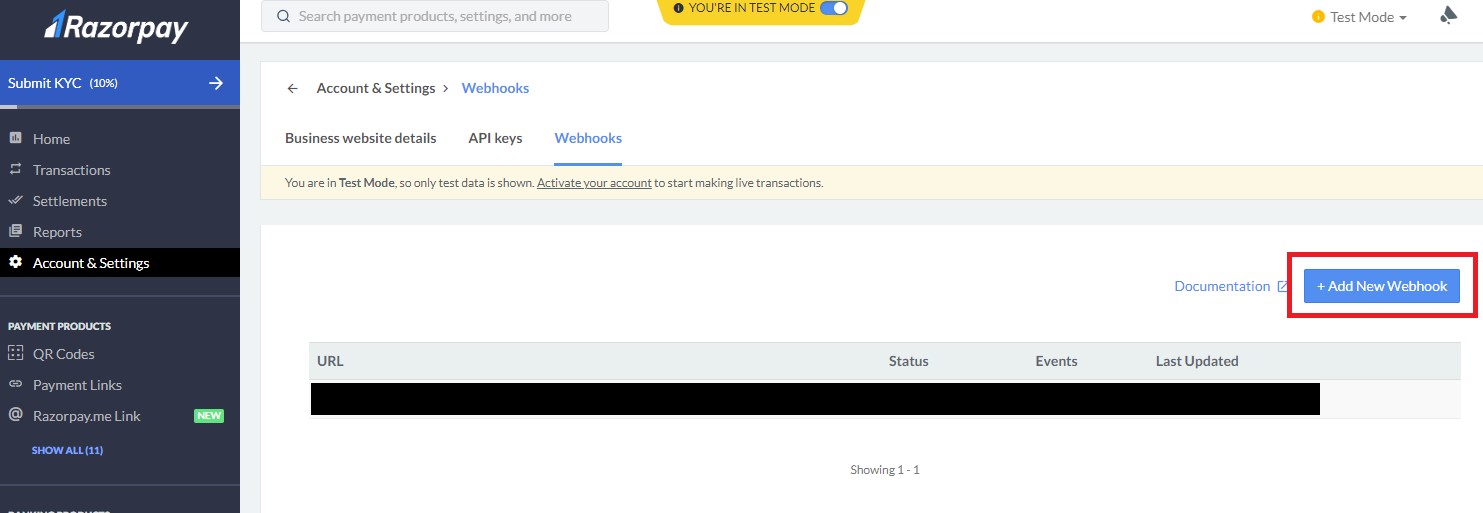
- Afterwards click on Add New Webhook button as shown in the image below.
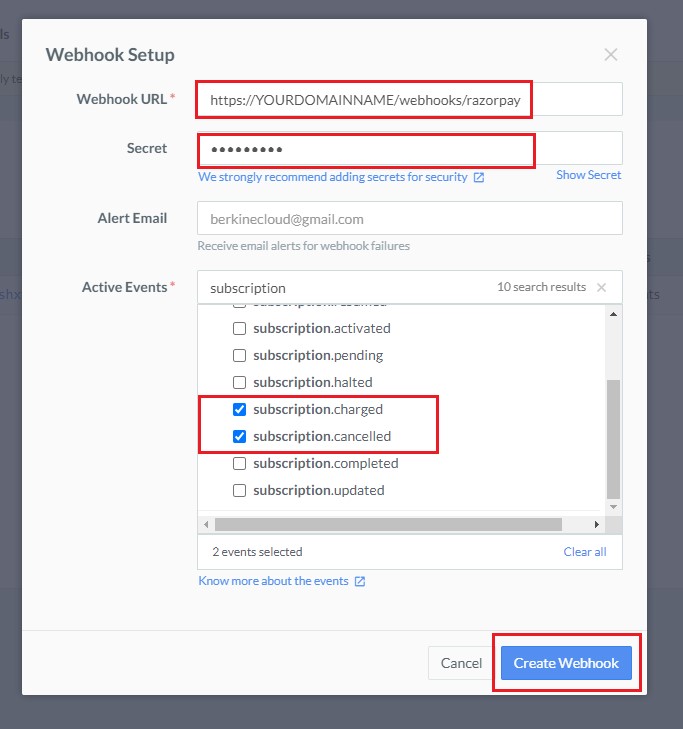
- Enter your webhook URL in the following format: https://YOURDOMAINNAME/webhooks/razorpay. Replace YOURDOMAINNAME with your actual domain.
- Generate a webhook secret key, which you will need for the Payment Settings page of the script.
- Select the two subscription events, as depicted in the image below, and click on the Create Webhook button.
-
Include all this information to Admin -> Finance Manager -> Payment Settings -> Razorpay section.