Paypal Setup
You need to enter your PayPal credentials in the Admin panel under Finance Manager -> Payment Settings -> PayPal. Ensure you include all your PayPal credentials and activate the PayPal checkbox(es).
- PayPal Client ID
- PayPal Client Secret
- Domain Name for Paypal Webhook URI
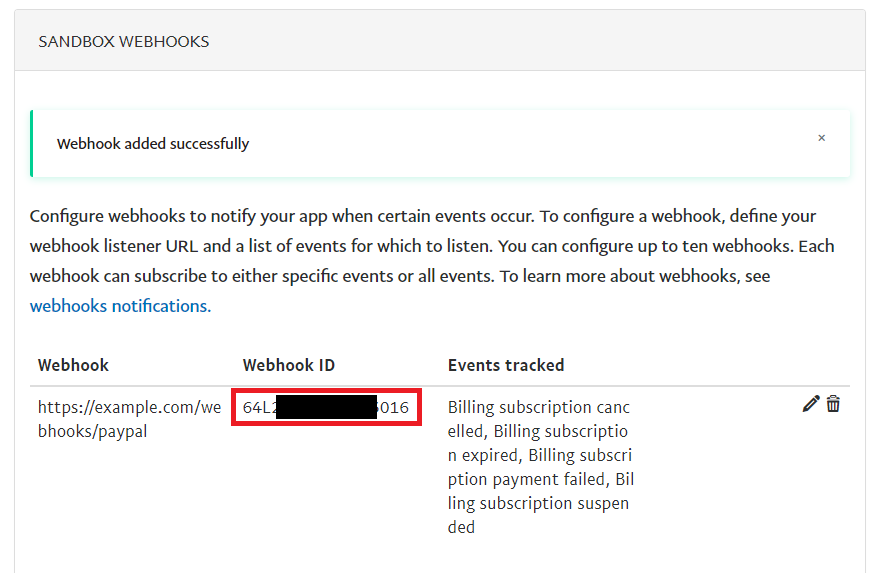
- Paypal Webhook ID

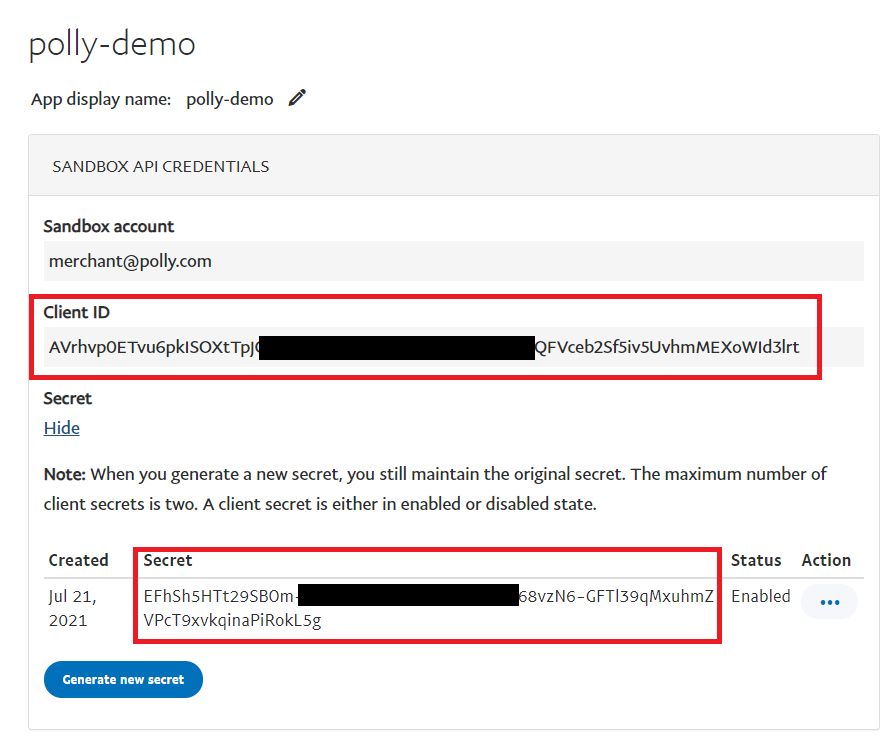
How to get Paypal Client ID and Paypal Client Secret:
- Log in to your dashboard at developer.paypal.com.
- From the left menu bar, navigate to Dashboard -> My Apps & Credentials -> Create New App.
- Enter your desired app name and click create.
- PayPal will generate a Client ID and Client Secret for your new app. In your script, store these under Management -> Payment Settings -> PayPal Client ID and Client Secret fields.
Create Paypal Webhook with select events:
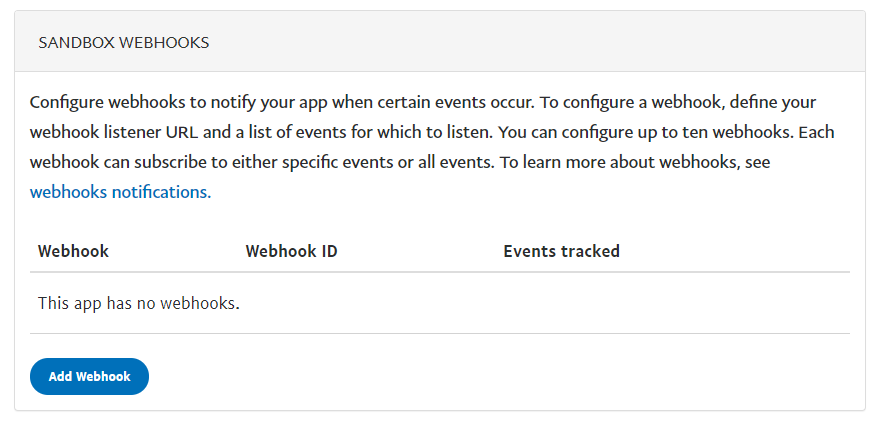
On the same page as explained above, go to Dashboard -> My Apps & Credentials, select your newly created app, and scroll to the bottom of the page until you reach "Sandbox Webhooks." Click "Add Webhook." This will be Live Sandbox for live payments
- Include your domain name followed by /webhooks/paypal, for example: https://www.domainname.com/webhooks/paypal.
- Important! Make sure you have the same path included for Paypal Webhook URI under Finance Manager -> Payment Settings -> Paypal
- Select the following webhook events for subscriptions and click save:
- BILLING.SUBSCRIPTION.CANCELLED
- BILLING.SUBSCRIPTION.SUSPENDED
- BILLING.SUBSCRIPTION.PAYMENT.FAILED
- BILLING.SUBSCRIPTION.EXPIRED
- PAYMENT.SALE.REFUNDED
- PAYMENT.SALE.REVERSED
- PAYMENT.SALE.COMPLETED
Save the Webhook ID under Finance Manager -> Payment Settings -> Paypal -> Paypal Webhook ID